Best Of
WhatsApp Survey: How to Make & Share a Survey for WhatsApp

Article written by Parvathi Vijayamohan
Content Marketer at SurveySparrow

8 min read
3 July 2024


Best Of
Article written by Parvathi Vijayamohan
Content Marketer at SurveySparrow
8 min read
3 July 2024
WhatsApp is the most popular communication platform – not just for chats and calls anymore. It’s also a total game-changer for organizations who want to conduct surveys. So in this blog post, we will guide you through the process of setting up and running a WhatsApp survey.
Here’s a step-by-step guide on how easily you can create, share, and collect feedback through WhatsApp surveys.
1: Log in to your SurveySparrow account and go to your account settings.
2: Under the Messaging section, select WhatsApp. Switch on the toggle for your WhatsApp Business Service provider.
3: Enter your account identifier and product token. If you don’t know what they are, here’s how you can get them from your WhatsApp Business account.
4: Click Connect.
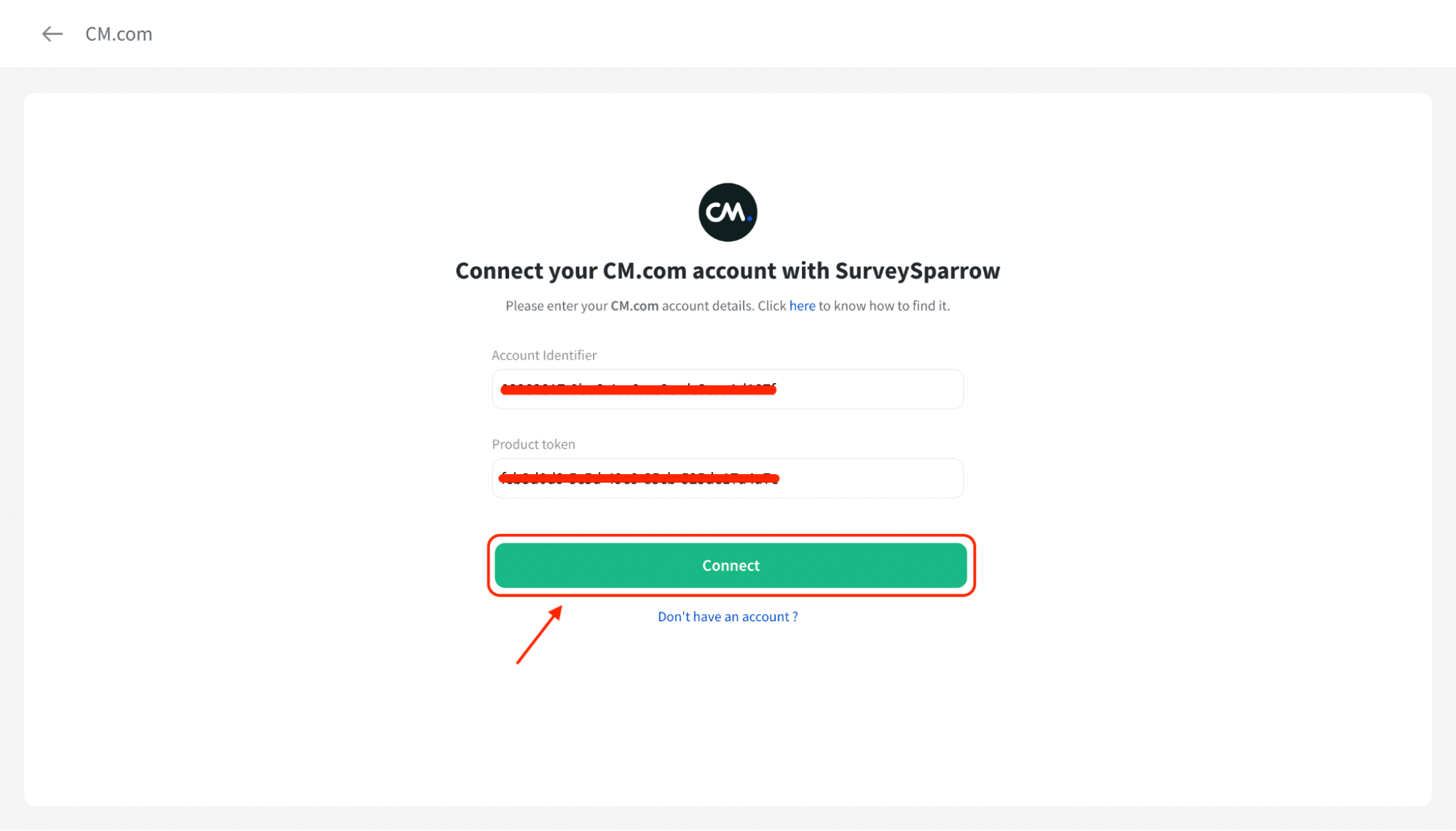
Your WhatsApp survey feature is active and ready to be customized!
For more insights, check out our help article: How to connect your WhatsApp business provider account with SurveySparrow.
WhatsApp surveys are available on the free plan provided by SurveySparrow. So, sign up now and follow through the rest of the steps as we discuss.
1: Define your survey objectives and target audience.
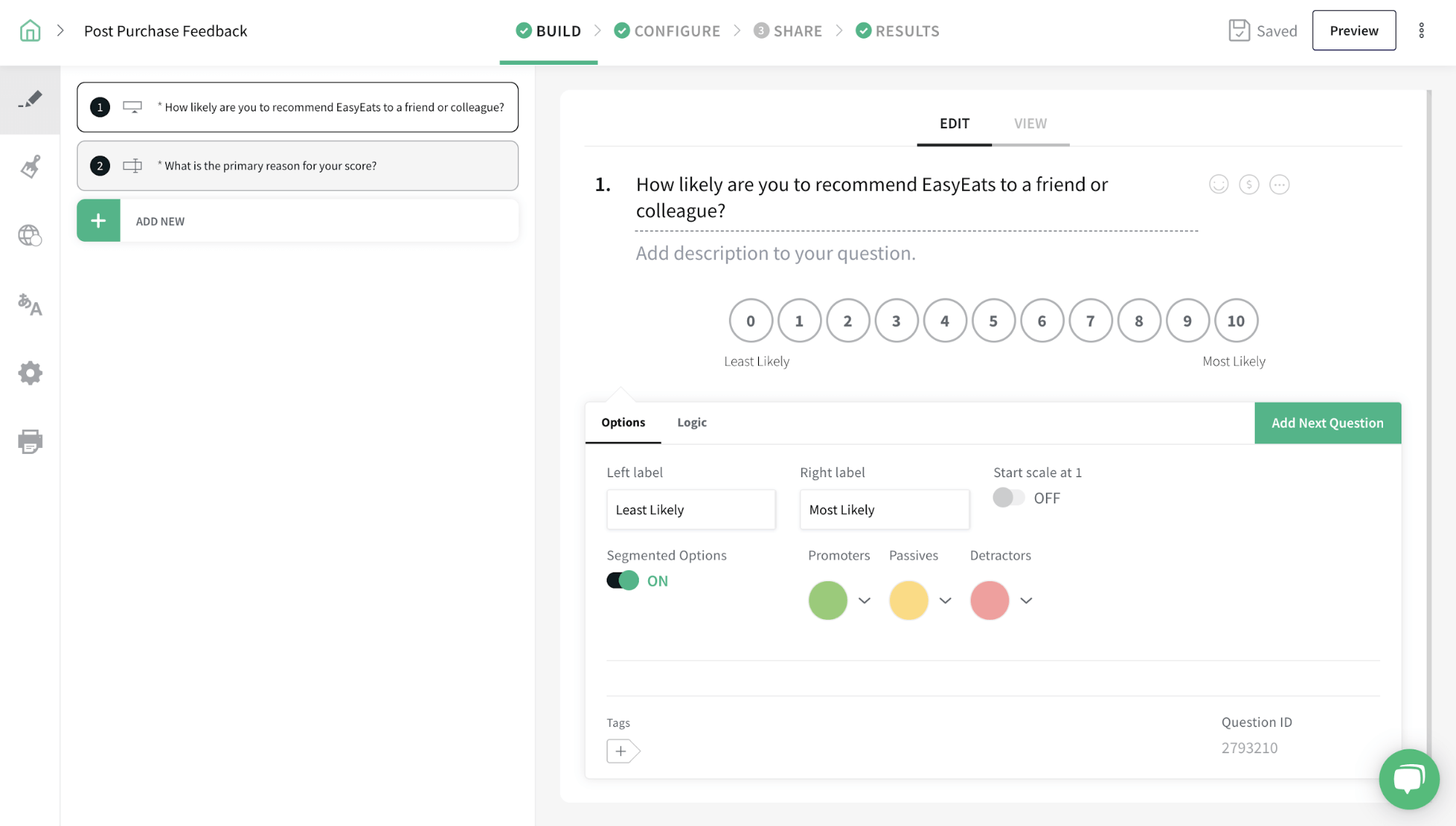
2: Craft your WhatsApp questionnaire from scratch with our drag-and-drop form builder. Add supporting images or videos.
3: Or, choose from one of our survey templates. Use as it is or customize as you like.
4: You can also try SurveySparrow’s AI Wing to create an entire survey from scratch in seconds.
5: Personalize the survey flow for different respondents with survey logic and variables.
1: Navigate to the Share section and select WhatsApp.
2: Select the Contact list(s) to share your survey with.
3: Choose a message template and language.
4: Personalize the placeholder message with variables and the survey link.
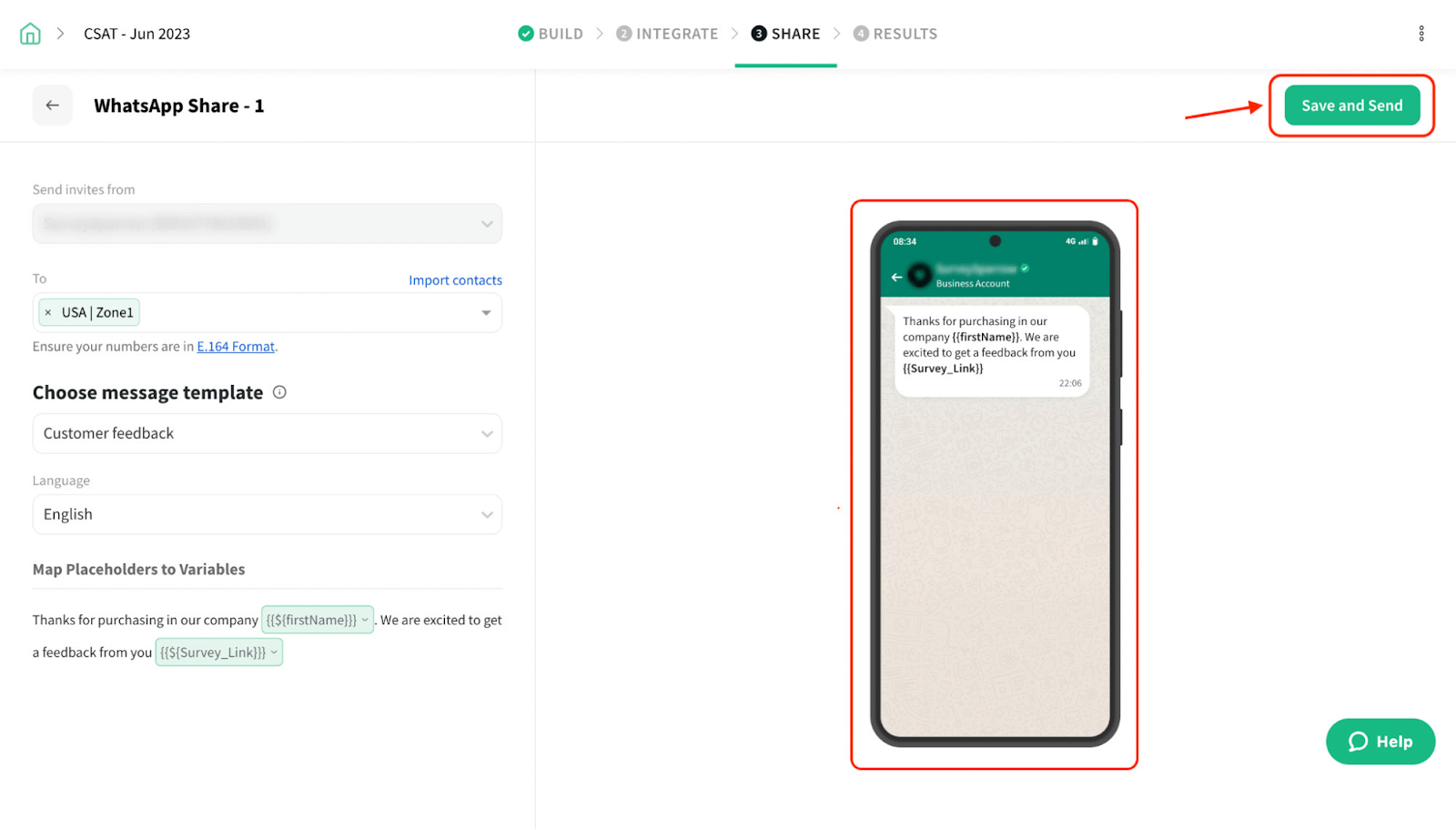
You can monitor the edits in the preview pane.
Once finished, give it a final look. Then click Save and Send.
1: Navigate to the Share section.
2: Click on a WhatsApp share.
3: View the number of messages sent, delivered, and seen.
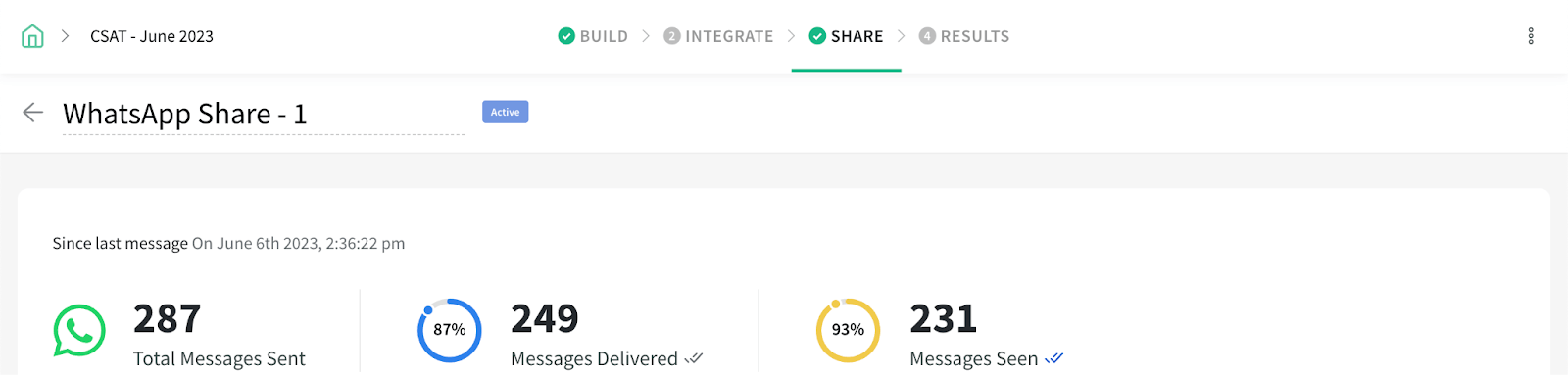
This will help you analyze the effectiveness and delivery of your WhatsApp share.
For more insights, check out our help article.
Creating an effective WhatsApp survey is all about nailing the details. Here are some expert tips and best practices to level up your WhatsApp surveys:
Your questions should be clear, concise, and relevant. Avoid bias or leading questions that might influence responses.
Additionally, get creative and keep your participants engaged. Mix things up with 30+ question types like multiple-choice, rating scales, and open-ended questions.
Spice up your survey with some interactive magic. Use skip logic to show or hide questions based on previous responses. It’s like tailoring the survey to each participant’s journey.
And don’t forget variables—they allow you to personalize your survey invitations and messages. It’s all about making your participants feel special.
WhatsApp is all about mobile devices, so make sure your survey looks and works great on phones and tablets. Keep the layout clean, font size readable, and formatting mobile-friendly.
Additionally, test it on different devices and screen sizes to ensure a smooth experience for everyone.
Nobody likes a never-ending survey, so keep it short and sweet. Focus on the essential questions that provide the insights you need.
If you have a longer survey, break it down into smaller sections. And don’t forget to add some fun elements like images, videos, or emojis to keep things interesting.
Give your participants clear and simple instructions on how to complete the survey. Explain the purpose, estimated duration, and any specific guidelines. Use examples if necessary.
And don’t forget to show appreciation for their time and effort. Gratitude goes a long way.
Before you unleash your survey on WhatsApp, do some testing. Check for any technical glitches or confusing parts. Try it on different devices to ensure it looks great everywhere.
Get feedback from a small group of participants and fine-tune your survey based on their input. It’s all about making it a smooth and enjoyable experience.
Let’s explore the unique advantages WhatsApp offers for conducting surveys:
WhatsApp has a huge user base with over 2 billion active users worldwide. That means you can reach a diverse audience from different backgrounds and places. It’s like tapping into a global network of potential survey participants.
According to BloggingWizard, people are nearly 50% more responsive on WhatsApp compared to other communication channels. It’s a platform where conversations happen quickly and conveniently. So when you send out a WhatsApp survey, there’s a much higher likelihood of getting prompt responses. That’s gold for survey creators like you.
One of the coolest things about WhatsApp is that it allows real-time interactions between you and your respondents. You can have conversations with them, clarify doubts, and dive deeper into their thoughts. It’s like having a direct line of communication with your audience, making the whole survey experience more personal and engaging.
Conducting a survey on WhatsApp opens up new avenues for gathering feedback and insights from your audience.
By following our comprehensive guide, you can create and run insightful surveys for WhatsApp, harnessing the power of this popular communication tool. It’s time to embrace the opportunities offered by WhatsApp surveys to drive your business forward.
Get in touch with our team to learn more, or sign up below to try our survey software for free


Thousands of brands trust SurveySparrow to turn feedback into growth. Try it free today!

Best Of
12 MINUTES
20 June 2022

Best Of
14 MINUTES
14 February 2021

Best Of
4 MINUTES
16 March 2020

Best Of
13 MINUTES
18 April 2020
14-day free trial • Cancel Anytime • No Credit Card Required • No Strings Attached
14-day free trial • Cancel Anytime • No Credit Card Required • No Strings Attached


